



Sometimes you need to manage lists where the information is arranged in rows. Excel offers a simple way to work with this big data in rows.
Unfortunately, the command to access the data form is not on the Ribbon, but you can do one of the following:
-
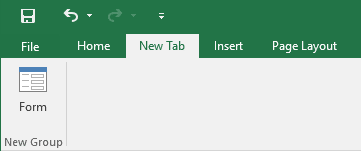
Add it in your own menu:
-
add it in Quick Access toolbar:

To use the data form, follow these steps:
-
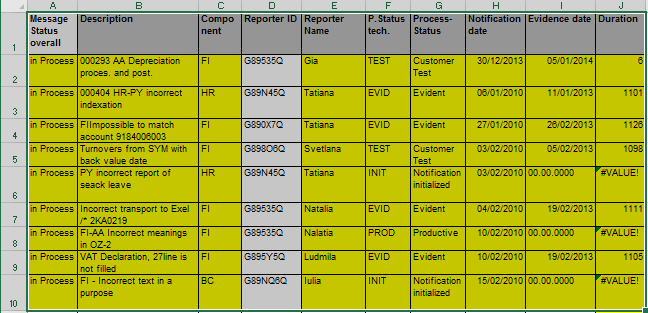
Select data with headers of the columns in the first row of your data range:
-
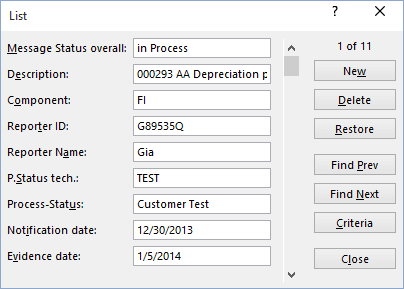
Click the Form… button on your own menu or in Quick Access toolbar. Excel displays a dialog box customized to your data:
Notes:
-
To move between the text boxes, press Tab.
-
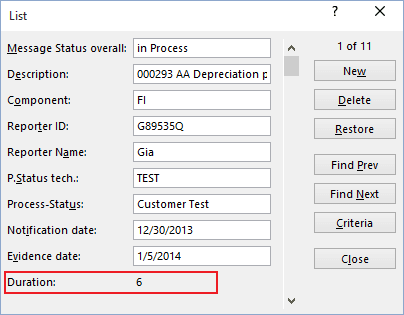
You can’t modify formulas using the data entry form – the formula result appears as text, not as an edit box:
-
To add new row to your table, click New button.
-
You can also use the form to edit the existing data.
Hope it is helpful for You_____________
Contact for any further queries:
Your message has been sent

 M. Adil Hussain
 Future Chartered Accountants